The Gaelic pronoun i (she) is often autocorrected to the English pronoun “I” in MS Word.
Fix
In MS Word go to:
Word Options > Proofing > Autocorrect Options > Exceptions
and then enter "i" as one of your exceptions.
Gu math tric, atharrachaidh MS Word i (litir bheag) gu “I” (litir mhòr).
Ceartaich
Ann am MS Word rach gu:
Word Options > Proofing > Autocorrect Options > Exceptions
agus iarr air "i" fhàgail a-mach à autocorrect.
Grave accentsStràcan
à, è, ì, ò, ù: Tap and hold the letter, select the letter with the accent.
À, È, Ì, Ò, Ù Select ↑, tap and hold the letter, select the letter with the accent.
à, è, ì, ò, ù Cùm sìos an litir agus tagh an litir le stràc
À, È, Ì, Ò, Ù Tagh ↑, cùm sìos an litir agus tagh an litir le stràc
Autocorrect/Autocomplete
iOS can make typing in Gaelic difficult due to it autocorrecting words as though they were in English. The SwiftKey keyboard developed by Microsoft has a Gaelic language pack which enables autocomplete and autocorrect. It can also detect whether you're typing in Gaelic or English without you having to tell it.
Tha iOS ga dhèanamh doirbh taipeadh sa Ghàidhlig leis gu bheil e a’ ceartachadh fhaclan mar gum biodh tu a’ taipeadh sa Bheurla. Tha SwiftKey, a chaidh a leasachadh le Microsoft, a’ cuideachadh le seo. Tha pasgan cànain Gàidhlig ri fhaighinn air a shon, agus tuigidh e gu bheilthu a’ taipeadh sa Ghàidhlig no sa Bheurla gun a bhith agad ri innse dha.
Instructions for installing SwiftKey are given below:
Seo stiùireadh airson SwiftKey a chur an-sàs:
Step 1: Download SwiftKey
Ceum 1: Luchdaich sìos SwiftKey
Open the App Store on your iPhone and search for Microsoft SwiftKey Keyboard. It is a free download.
Fosgail an App Store air an iPhone agad agus faigh lorg air Microsoft SwiftKey Keyboard. Tha e ri fhaighinn an asgaidh.
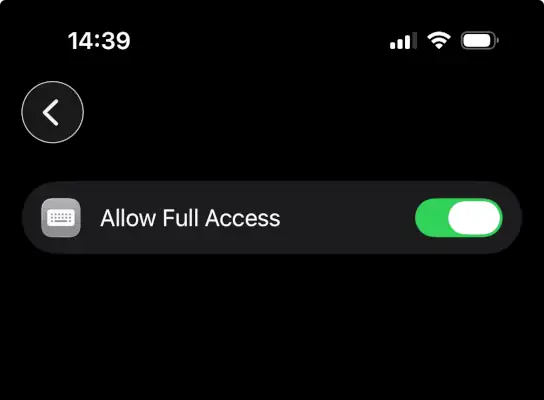
Step 2: Enable in Settings
Ceum 2: Cuir an comas
Go to your iPhone Settings > General > Keyboard > Keyboards. Tap Add New Keyboard, select SwiftKey, then tap it again to Allow Full Access.
Rach gu Settings > General > Keyboard > Keyboards. Tagh Add New Keyboard, tagh SwiftKey, agus an uairsin tagh e a-rithist gus Allow Full Access a chur an gnìomh.
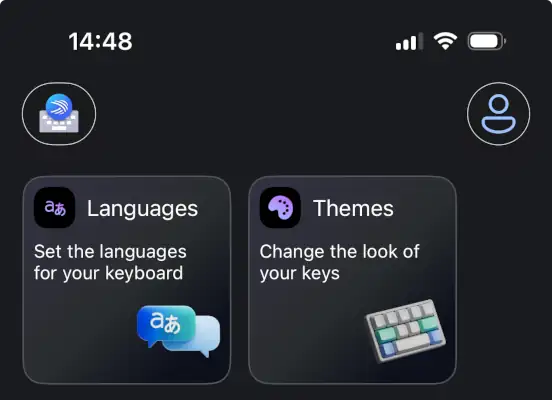
Step 3: Open the App
Ceum 3: Fosgail an App
Return to your home screen and open the SwiftKey app to finish the basic setup and access the language menu.
A-nis fosgail an app SwiftKey agus tagh “Languages”.
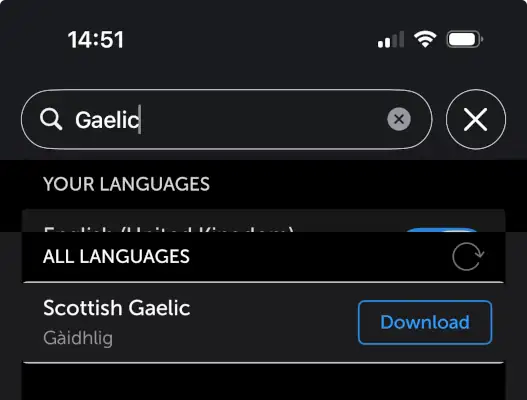
Step 4: Find Scottish Gaelic
Ceum 4: Lorg Gàidhlig na h-Alba
Tap on Languages in the app menu. Use the search bar and type "Scottish Gaelic" or "Gàidhlig".
Cleachd am bàr-sgrùdaidh agus taip "Gàidhlig na h-Alba" no "Gàidhlig".
Step 5: Download the Pack
Ceum 5: Luchdaich sìos an cànan
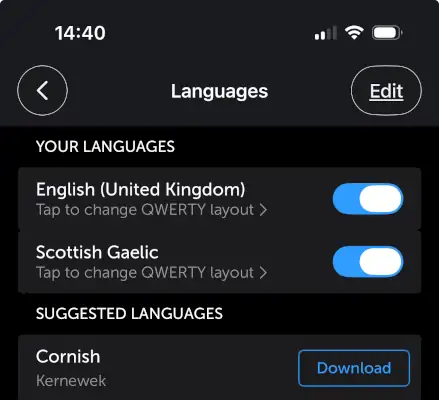
Tap the download icon next to Scottish Gaelic. Once it downloads, make sure the toggle switch next to it is turned On. (Assuming your two main languages are English and Gaelic, these should be the only ones turned on.)
Tagh Gàidhlig na h-Alba bhon liosta. Cho luath ‘s a luchdaicheas e sìos, dèan cinnteach gu bheil an suidse toggle ri thaobh air a thionndadh air. (Ma ’s e Beurla agus Gàidhlig an dà phrìomh chànan agad, bu chòir gur iad sin na h-aon fheadhainn a tha air an tionndadh air.)
Step 6: Start Typing!
Ceum 6: Tòisich a’ taipeadh!
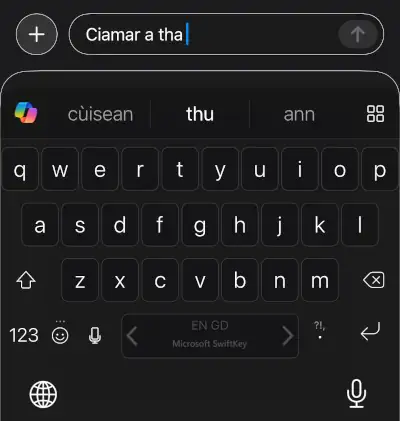
Open any app where you can type. Tap and hold the Globe icon (🌐) on the bottom left of your keyboard and select SwiftKey. You should see "EN" and "GD" on the spacebar indicating those languages are active!
Fosgail app sam bith far an urrainn dhut taipeadh. Cum sìos ìomhaigh na Cruinne (🌐) aig taobh clì do mheur-chlàir, agus tagh SwiftKey. Bu chòir dhut "EN" agus "GD" fhaicinn air an spacebar, a’ comharrachadh gu bheil na cànanan sin gnìomhach!
Accents
à, è, ì, ò, ù:
Tap and hold the letter, select the letter with the accent.
À, È, Ì, Ò, Ù:
Select ↑, tap and hold the letter, select the letter with the accent.
SwiftKey
The SwiftKey app is also available for Android. (The installation process is similar to that for iOS, above.)
Stràcan
à, è, ì, ò, ù:
Cùm sìos an litir agus tagh an litir le stràc
À, È, Ì, Ò, Ù: Tagh ↑, cùm sìos an litir agus tagh an litir le stràc<
SwiftKey
Tha SwiftKey ri fhaighinn airson Android cuideachd. (Tha am pròiseas airson fhaighinn coltach ris an fhear airson iOS, gu h-àrd.)
à, è, ì, ò, ù: Option+`
hold, and then type letter
cùm sìos, taidhp an litir
À, È, Ì, Ò, Ù: Option+Shift + `
hold and then type letter
cùm sìos, taidhp an litir
à, è, ì, ò, ù: Alt Gr+#
release and then type letter
leig às agus taidhp an litir
À, È, Ì, Ò, Ù: Alt Gr+#
release and then type letter
leig às agus taidhp an litir
Some simple ways to type grave accents in MS Windows, depending on which version you use. The grave accent ` is next to the number 1 at top of keyboard
à, è, ì, ò, ù Ctrl+`, release and type letter;
À, È, Ì, Ò, Ù Ctrl+Shift+`, release and type letter
OR
Alt key + character code on the numeric keypad on right of keyboard (laptops will vary). Ensure that the NUMLOCK is on.
à Alt+133 or 0224
è Alt+138 or 0232
ì Alt+141 or 0236
ò Alt+149 or 0242
ù Alt+151 or 0249
À Alt+0192
È Alt+0200
Ì Alt+0204
Ò Alt+0210
Ù Alt+0217
OR
Go to
Start > All Programs > Accessories > Character Map and you can find the letter you require.
OR
Many users find the "UK Extended" keyboard the best solution to typing accents on a Windows PC. It's a little fiddly to set up, but worth it. Full instructions are provided by Sabhal Mòr Ostaig.
Seo dòighean sìmplidh stràcan fhaighinn (a rèir dè an tionndadh de MS Windows a th'ann). Tha stràc ` ri taobh àireamh a h-aon (1) aig a' mhullach.
à, è, ì, ò, ù Ctrl+`, leig às agus taidhp an litir
À, È, Ì, Ò, Ù Ctrl+Shift+`, leig às agus taidhp an litir
NO
Alt + còd-àireamh air an taobh cheart dhen bhòrd-iuchrach; ma dh'fhaodte gum bi laptops eadar-dhealaichte. Dèan cinnteach gu bheil NUMLOCK air.
à Alt+133 no 0224 À Alt+0192
è Alt+138 no 0232 È Alt+0200
ì Alt+141 no 0236 Ì Alt+0204
ò Alt+149 no 0242 Ò Alt+0210
ù Alt+151 no 0249 Ù Alt+0217
NO
Rach gu:
Start > All Programs > Accessories > Character Map, far am faigh thu na litrichean a tha dhith ort.
NO
Tha mòran dhaoine a' faighinn an "UK Extended Keyboard" an doigh as fheàrr stràcan a thaidhpeadh. Tha stiùireadh mhath airson seo a chuir air dòigh ri fhaighinn bho Shabhal Mòr Ostaig.
Although you will see many books in print which have both grave and acute accents, Scottish Gaelic now uses only the grave accent, and this can be found on both
lowercase letters (à, è, ì, ò, ù) and uppercase letters (À, È, Ì, Ò, Ù).
Chan eil anns a’ Ghàidhlig a-nis ach an stràc (throm) `, ged a chì thu fhathast na dhà dhiubh (trom is geur) ann an tòrr leabhraichean. Tha stràcan a' nochdadh air litrichean beaga (à, è, ì, ò, ù)
agus
litrichean mòra (À, È, Ì, Ò, Ù).